0:00 REC

Minutes —
AI議事録アプリ
録音するだけで、話者ごとの文字起こしと議事録まで。
端末内モードなら
無料
オフライン
アカウント不要
iOS 26 以降の iPhone・iPad に対応
使い方で困ったら → よくある質問
0:06 — FEATURES
話すのは、あなた。
書きとめるのは、手もとの iPhone。
録音して、話者ごとの文字起こし、議事録。そのあとの質問や翻訳、iPad との同期まで。できることは6つです。
01

録音
画面を消しても、ほかのアプリを使っても、録音は続きます。ボイスメモなどの録音を取り込むこともできます。
02

話者ごとの文字起こし
誰が何を話したかを分けて、文字にします。声を登録しておくと、次の会議から名前が自動で付きます。
03

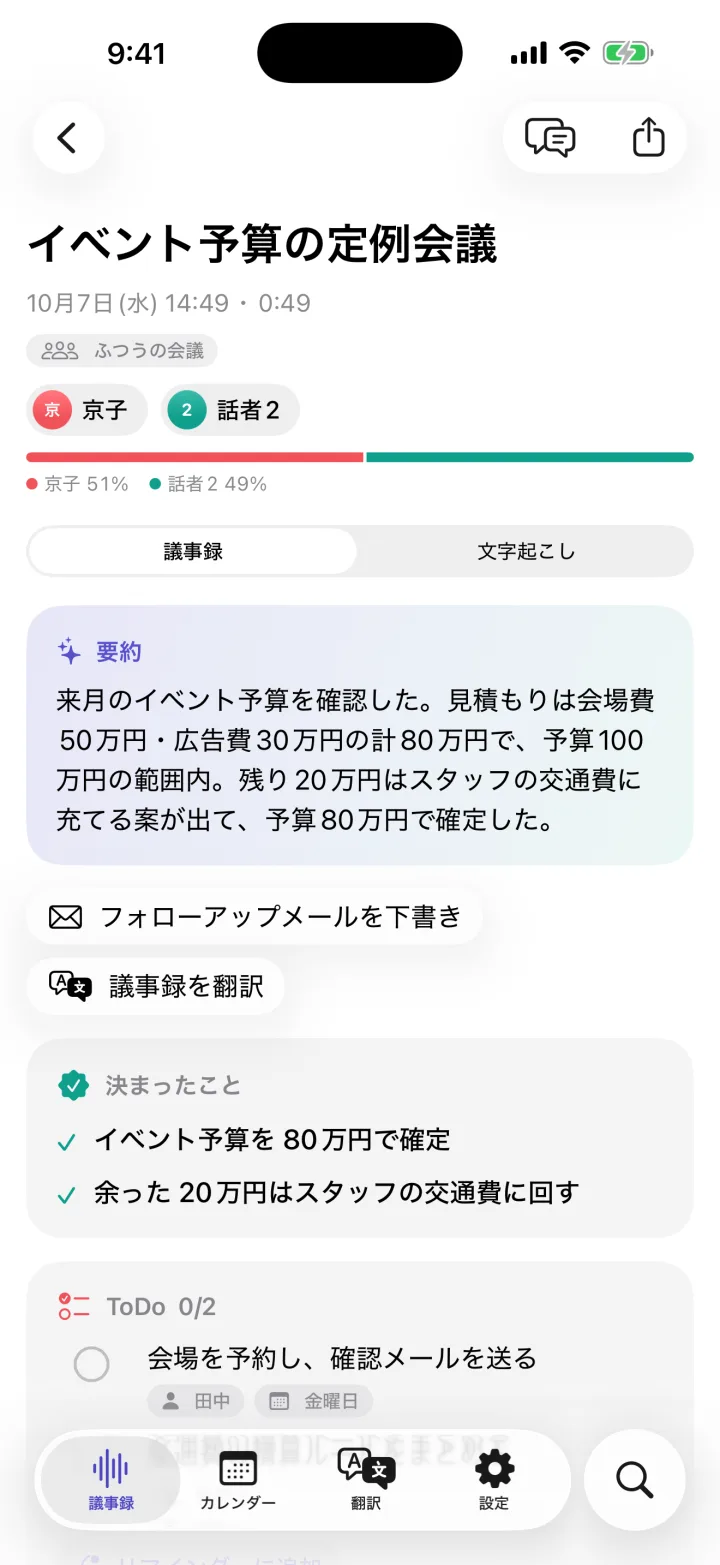
議事録(決まったこと・ToDo)
話し合ったこと・決まったこと・ToDo の3つにまとめます。ToDo はリマインダーへ送れます。
議事録を端末内で作るには、Apple Intelligence 対応端末が必要です(非対応でも、文字起こしは端末内でできます)。
04

AI に聞く
1つの会議にも、これまでのすべての会議にも質問できます。フォローアップメールの下書きもまかせられます。
05

翻訳・ライブ字幕
録音中は、話した言葉がライブ字幕で流れます。対面の会話の翻訳や、議事録の翻訳もできます。
06

iCloud で同期
同じ Apple アカウントの iPhone と iPad で、議事録がそろいます。音声ファイルを同期するかは選べます。
0:15 — SCREENS
録音から、
議事録の一覧まで。
実際の画面を、使う順に並べました。
会議中
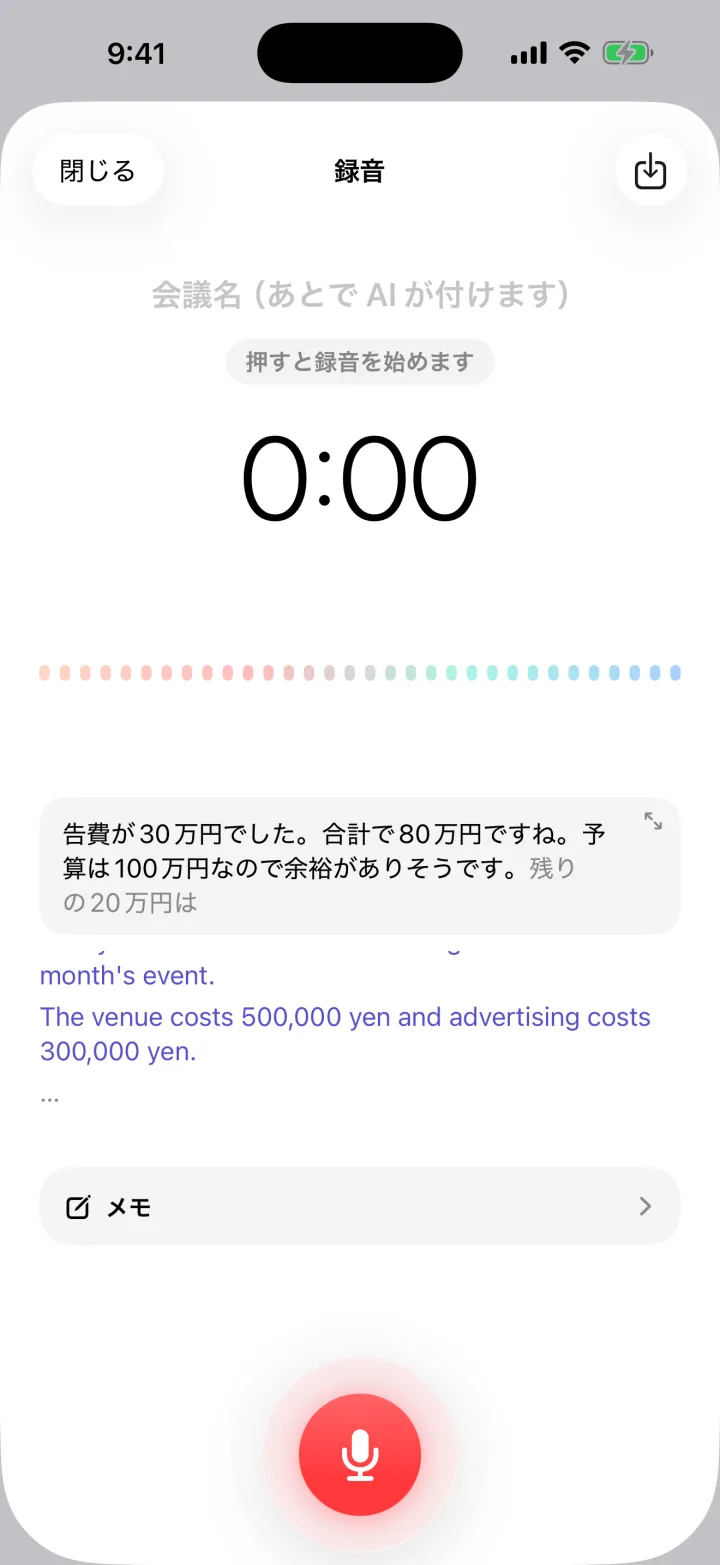
話した言葉が字幕に。訳も出せます。
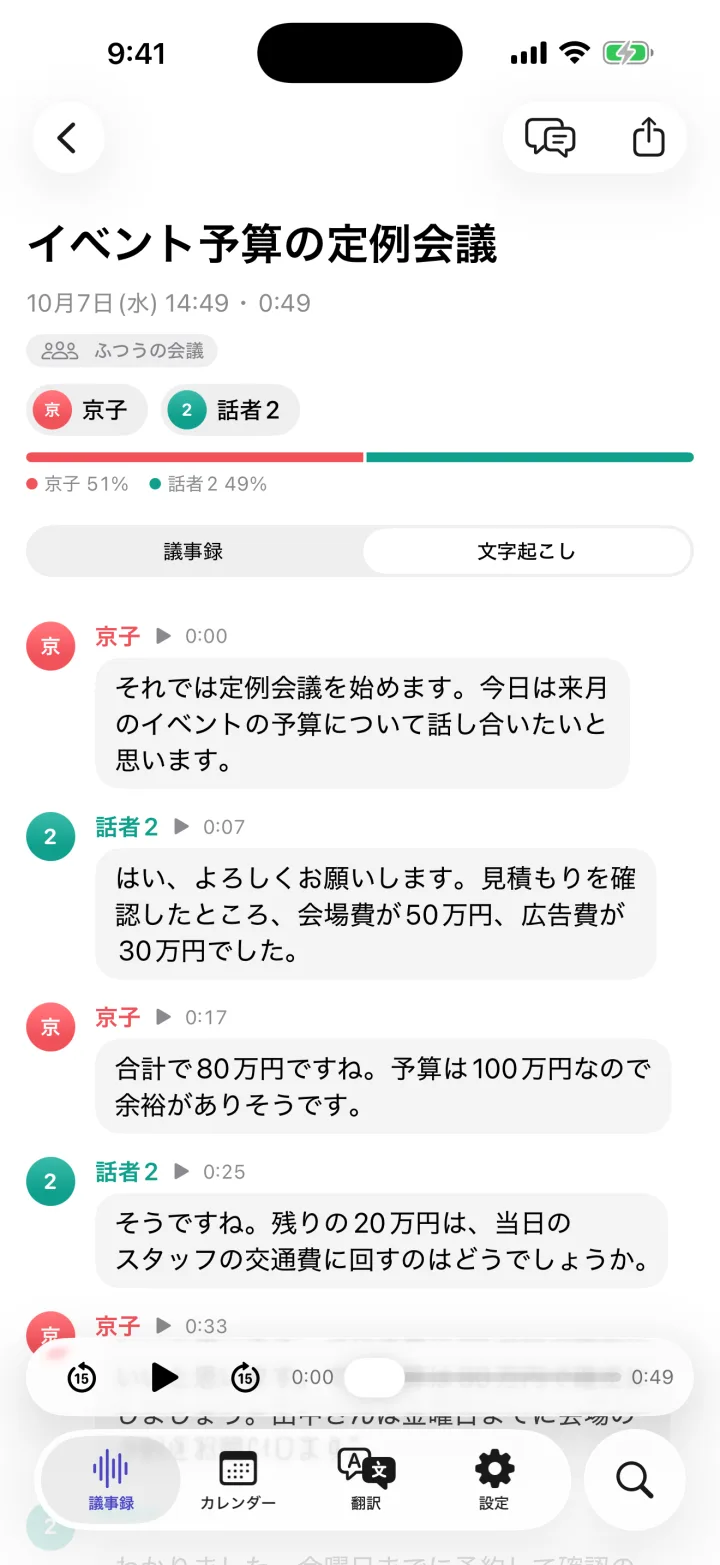
発言が、話した人ごとに並びます。
終わってすぐ
決まったことと、ToDo をまとめます。
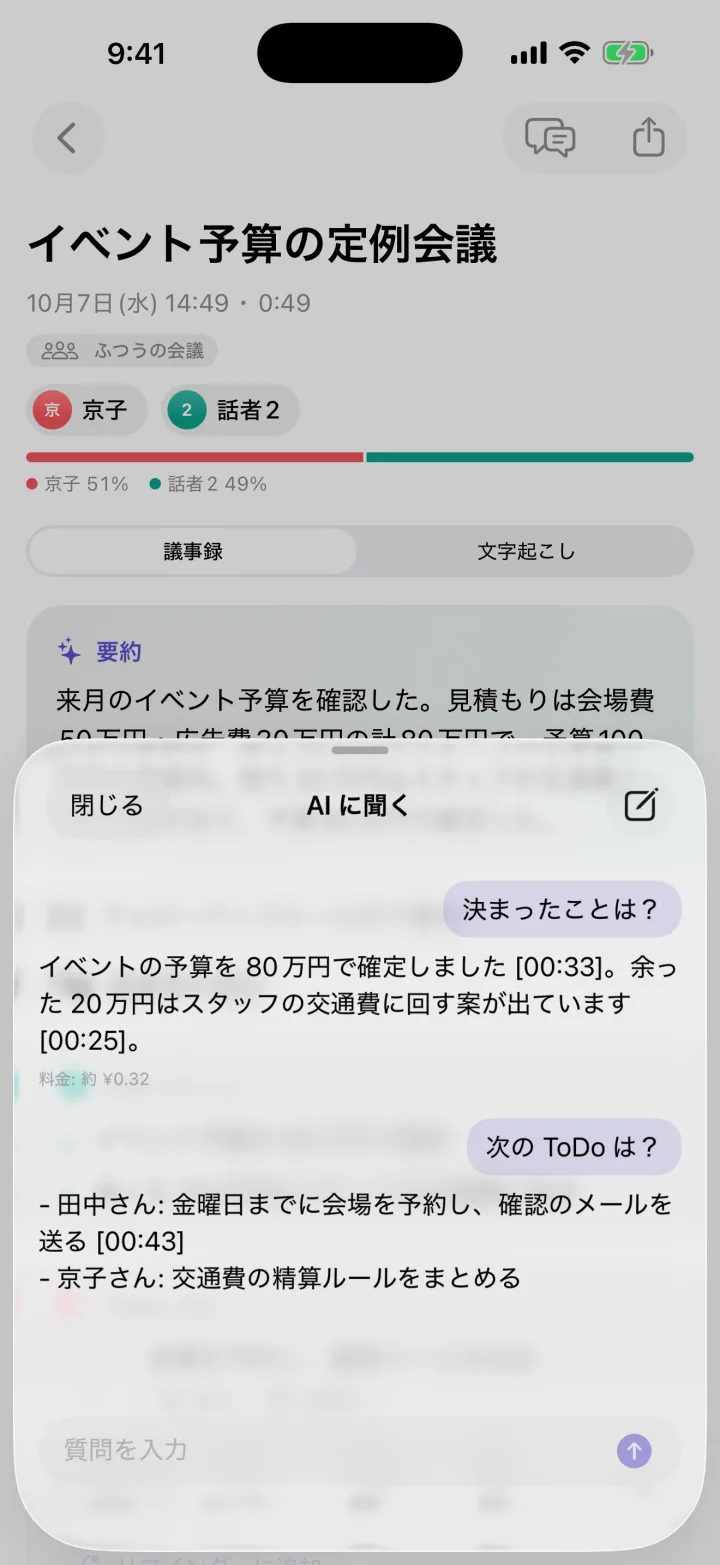
会議の中身を、AI に質問できます。
クラウド AI 使用時の例
あとで
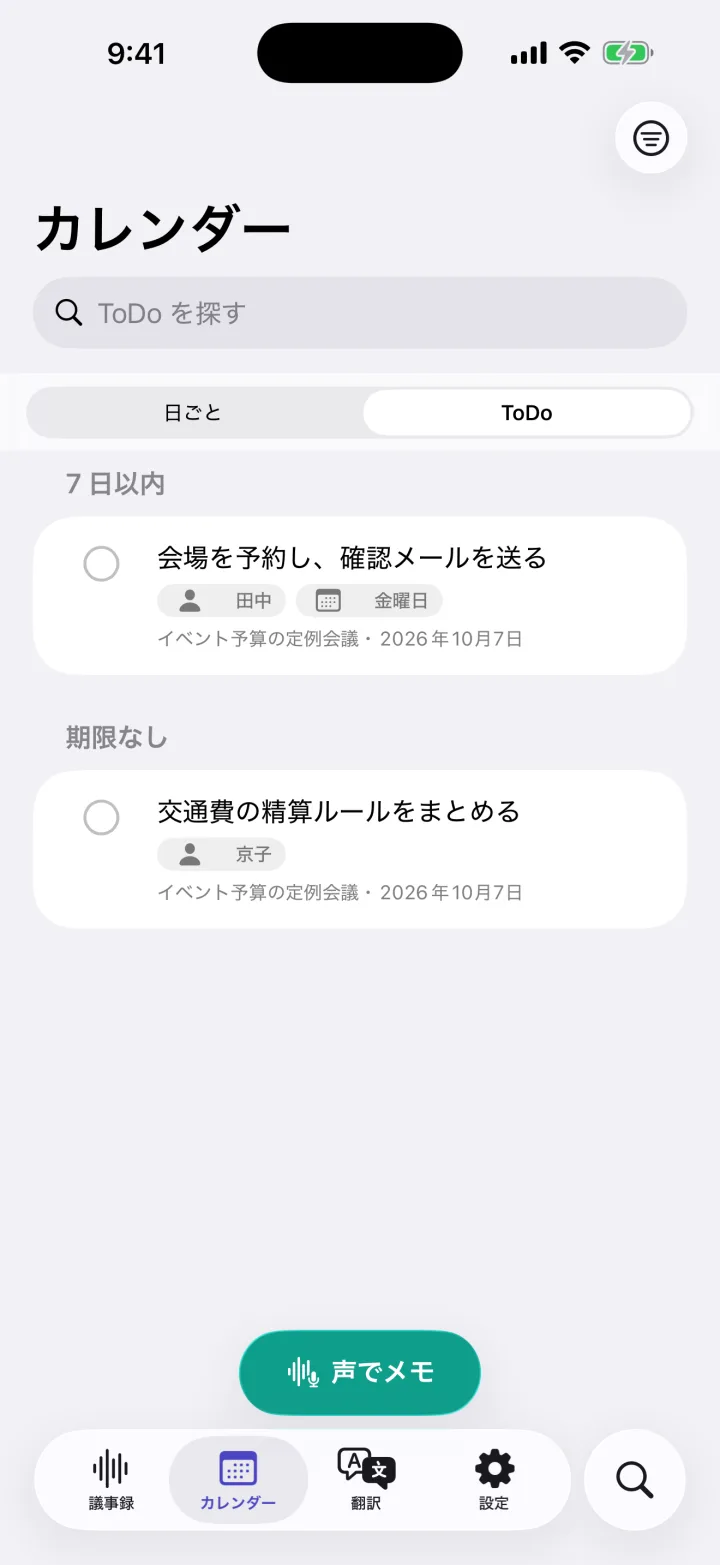
ToDo を、期限ごとに一覧にします。
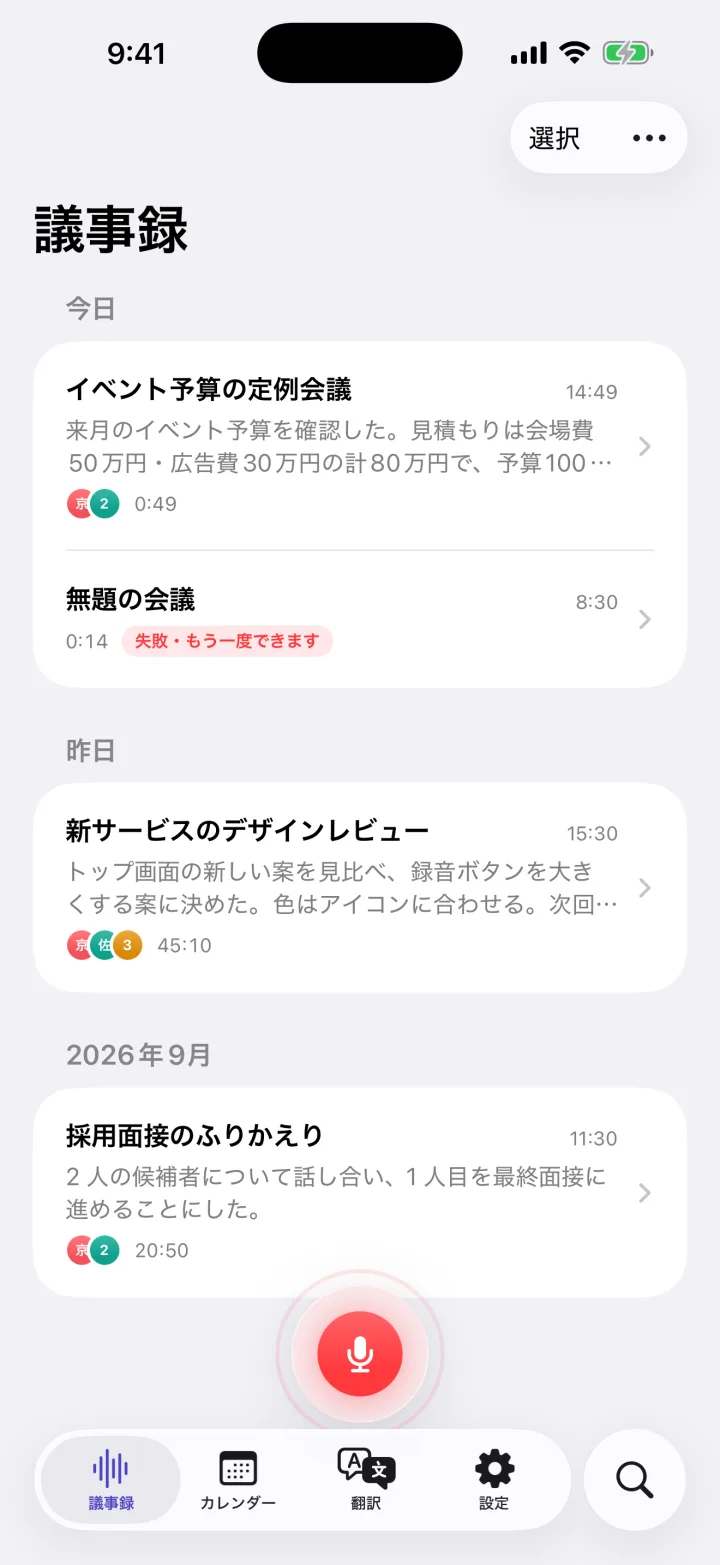
これまでの会議を、日付ごとに見返せます。
iPad でも
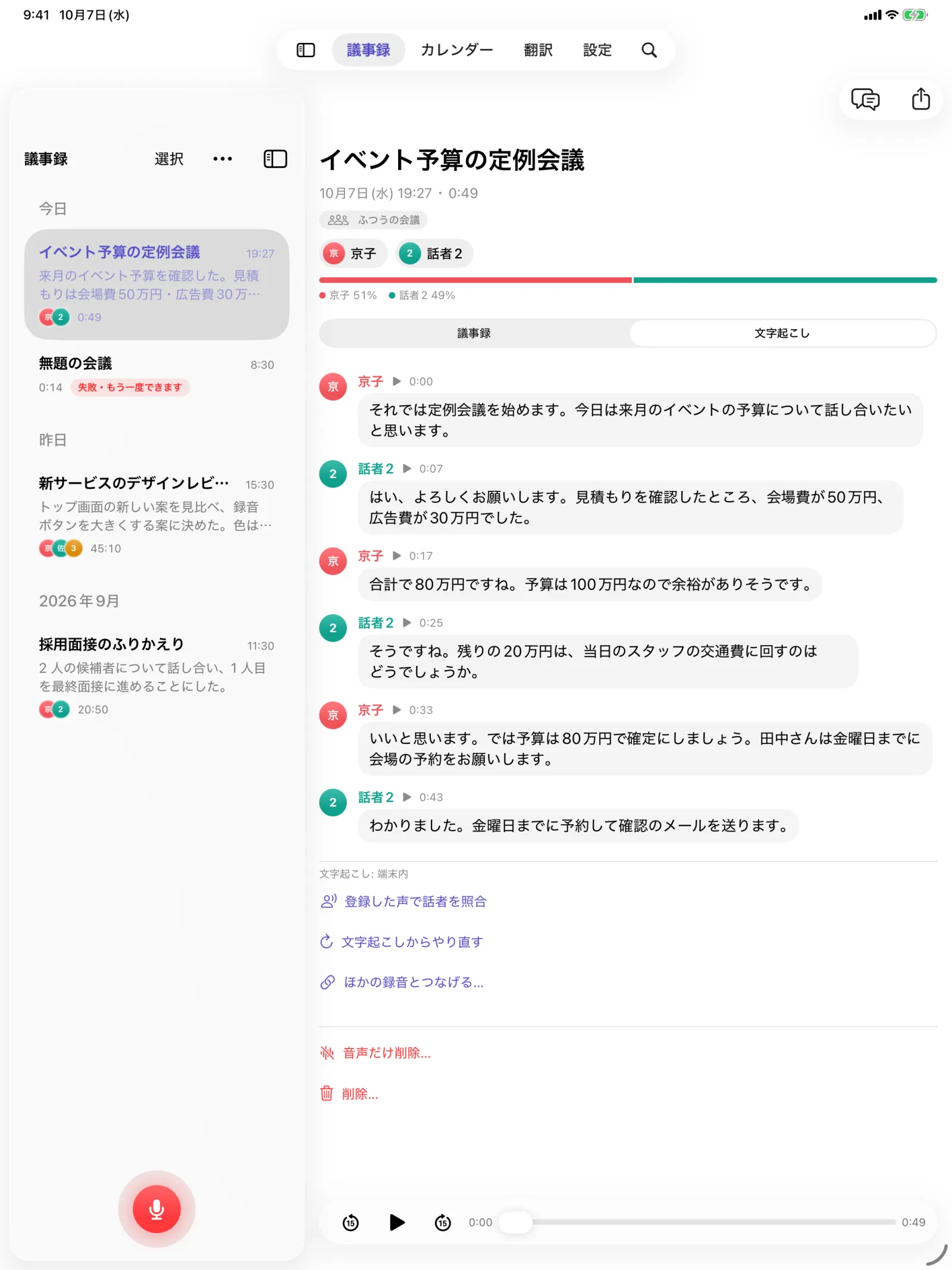
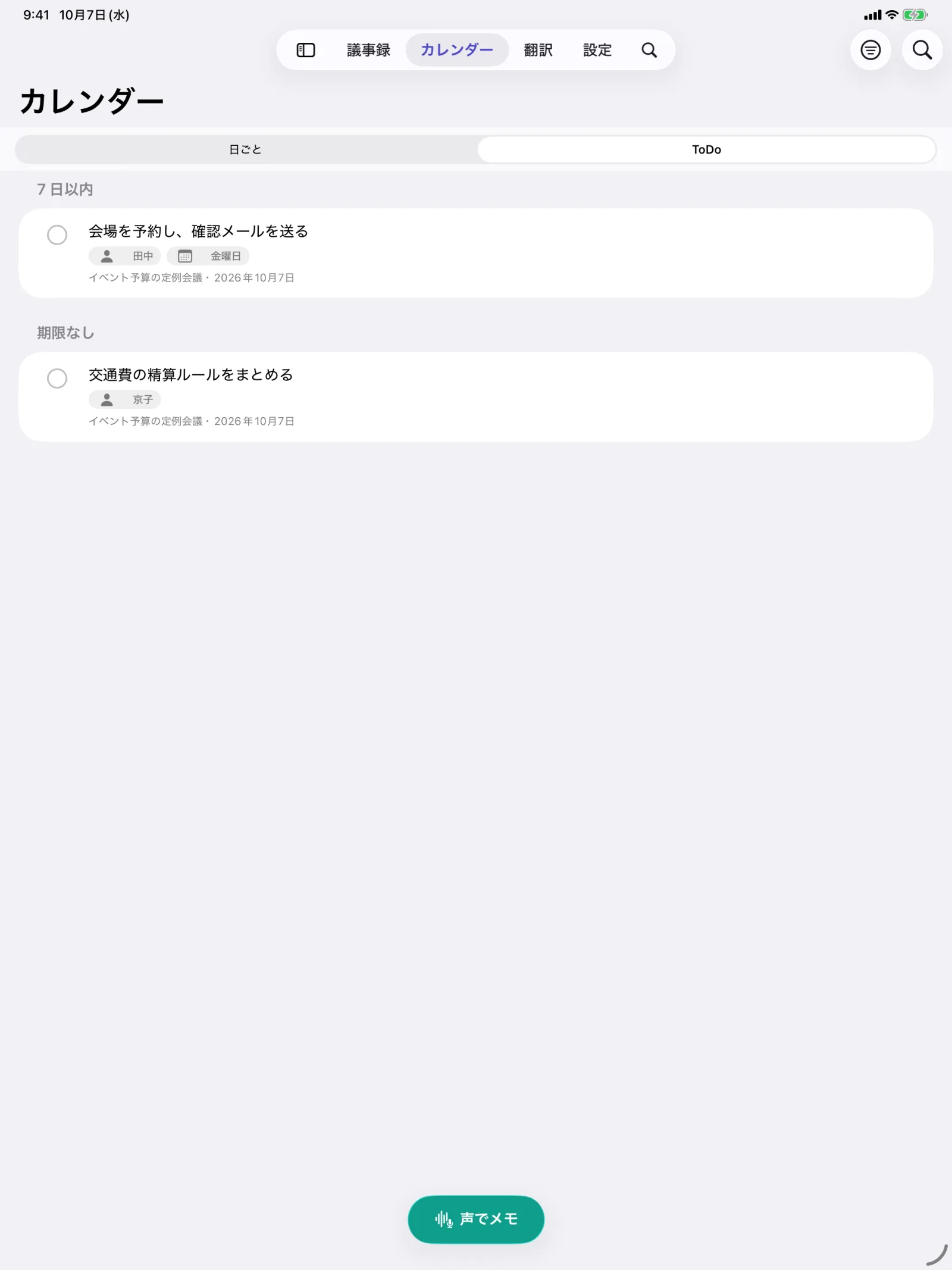
iCloud で同期すると、iPhone で録った会議を、iPad の大きな画面で読めます。
0:24 — PRIVACY

端末内モードなら、
録音は手もとから出ません。

端末内なら無料
初めの設定の「端末内」なら、料金はかかりません。API キーもいりません。

オフラインで動く
端末内(オンデバイス)モードでは、音声も文字も端末の外に出ません。ネットにつながっていなくても使えます。
話者を見分けるモデルは、初めに一度ダウンロードすることがあります。このとき、あなたのデータは送りません。

アカウント不要
登録もログインもありません。入れたら、すぐに録音を始められます。

開発者のサーバーなし
開発者があなたのデータを見ることはありません。アプリには広告もアクセス解析もありません。
保存されるのは、あなたの端末と、あなたの iCloud(オンのとき)だけです。音声ファイルは「音声ファイルも同期」をオンにしたときだけ、iCloud にも保存されます。
クラウドの AI を選んだとき
- 送る前に「何を・どこへ送るか」を表示し、あなたが同意したときだけ送ります。同意はいつでも取り消せます。
- 音声や文章は、端末から各社へ直接送られます。開発者のサーバーは通りません。
- 選べるのは OpenAI・Claude・Gemini・AssemblyAI・Deepgram です。使うかどうかは、あなたが決めます。
0:33 — PRICING
基本の機能は無料。
条件も、ここに全部。
料金
| 基本の機能 | 無料 |
| 端末内モード | 料金はかかりません(初めの設定) |
| クラウド AI(任意) | あなたの API キー(クラウドの AI を使うための「合鍵」)で使います。料金は各社から、あなたのキーに請求されます。アプリの「設定 › 使用量」で、おおよその金額を確認できます。 |
対応端末
| iOS | iOS 26 以降 |
| 端末 | iPhone・iPad |
| 議事録を端末内で作るには | Apple Intelligence 対応端末が必要です。対応していない端末でも、文字起こしまでは端末内でできます。 |
ご注意
- 録音する前に、参加者に「録音して AI で処理すること」を伝え、同意をもらってください。
- AI の出力には、誤りが含まれることがあります。大切なところは、元の文字起こしや音声で確かめてください。
0:41 — MINUTES
このページの議事録
0:49 · 終了
決まったこと

端末内モードなら、無料。オフラインで、アカウント不要
録音から、話者ごとの文字起こし、決まったこと・ToDo までできる(議事録を端末内で作るには Apple Intelligence 対応端末が必要)
クラウドの AI は、自分の API キーで使いたい人だけ
ToDo

App Store で入手する
録音の前に、参加者の同意をとる
APPENDIX 1 · FAQ
よくある質問
お金はかかりますか?
基本の機能は無料で使えます。初めの設定の「端末内」なら、API の料金もかかりません。クラウドの AI(OpenAI・Claude・Gemini・AssemblyAI・Deepgram)を選んだときだけ、その会社からあなたの API キーに料金が請求されます。アプリの「設定 › 使用量」で、おおよその金額を確認できます。
API キーとは何ですか?どうやって手に入れますか?
クラウドの AI をこのアプリから使うための「合鍵」です。アプリの「設定 › API キー › API キーってなに?・取り方ガイド」に、会社ごとの作り方をのせています。キーは端末のキーチェーンに暗号化して保存され、その会社以外には送られません。
録音や議事録は、どこに保存されますか?
あなたの端末と、あなたの iCloud(オンのとき)だけです。開発者のサーバーはなく、開発者があなたのデータを見ることはありません。音声ファイルは、設定で「音声ファイルも同期」をオンにしたときだけ iCloud にも保存されます。
クラウドの AI に送ったデータはどうなりますか?
使う前に「何を・どこへ送るか」を表示し、同意したときだけ送ります。同意は「設定 › API キー › 会社名」からいつでも取り消せます。Gemini と AssemblyAI では、文字起こしが終わると、アップロードした音声を消すよう各社に依頼します。各社での扱いは、各社のプライバシーポリシーに従います。
エラーが出ました。録音は消えましたか?
消えていません。AI の会社のエラー(残高不足・回数の上限・混雑など)や通信のエラーでは、音声はそのまま残ります。原因を直してから、議事録の画面で「もう一度」を押すと、止まったところから続けられます。API キーをまだ入れていないときは「録音済み」のまま待つので、キーを入れてから「議事録を作る」を押してください。
録音中にほかのアプリを使ったり、画面を消したりしても大丈夫ですか?
大丈夫です。録音は続きます。アプリが途中で閉じてしまっても、次に開いたときに「途中までの録音」として残ります。議事録づくりも、ほかのアプリに切り替えて続けられます(アプリを上にスワイプして閉じると止まります。あとで「もう一度」で続きから再開できます)。
話者の名前を自動で付けたいです
「設定 › 話者と声」で自分の声やよく会う人の声を登録すると、次の会議から自動で名前が付きます。
データを消したいです
議事録の画面で「削除…」を押すと「最近削除した項目」に移り、30 日後に完全に消えます。「設定 › データとプライバシー」から、音声だけの自動削除や、すべてのデータの削除もできます。
録音するときに気をつけることは?
国や地域、会社の決まりによっては、録音する前に相手の同意が必要です。参加者に、録音して AI で処理することを伝えてから使ってください。
ほかの操作は、使い方マニュアルで順に説明しています。
APPENDIX 2 · CONTACT
お問い合わせ
不具合やご要望は、マツシマAIラボのお問い合わせフォームからお送りください。「Minutes について」と書き、お使いの端末と iOS のバージョン、起きたことを教えていただけると助かります。
APPENDIX 3 · ENGLISH
Minutes: AI Meeting Notes
Minutes is an iPhone and iPad app that records meetings and creates transcripts by speaker and meeting minutes. It works for free entirely on your device. For higher accuracy, you can also choose a cloud AI with your own API key.
- Record — keeps recording with the screen off or while you use other apps. You can also import recordings such as Voice Memos.
- Transcripts by speaker — who said what, as text. Enroll voices and names are added automatically from the next meeting.
- Minutes — summary, decisions and to-dos. Send to-dos to Reminders.
- Ask AI — ask about one meeting or all of them, and draft follow-up emails.
- Translation and live captions — live captions while recording, face-to-face translation and translated minutes.
- iCloud sync — the same minutes on your iPhone and iPad with the same Apple Account.
Privacy
In On-device mode, recording, transcription and minutes are free, work offline and need no API key — your audio and text stay on your device. There is no account and no developer server. Cloud AI is optional: data goes straight from your device to the provider you choose, only after you agree.
Requirements
- iPhone or iPad with iOS 26 or later
- Creating minutes on device requires a device that supports Apple Intelligence (other devices can still transcribe on device)
- Core features are free. Cloud AI is billed by each provider to your own API key.
- Provided by Matsushima AI Lab (Yusuke Matsushima)
FAQ
Does it cost anything?
The core features are free. With the default “On-device” setting there are no API charges either. Only when you choose a cloud AI (OpenAI, Claude, Gemini, AssemblyAI or Deepgram) does that company charge your API key. You can see an estimate in Settings › Usage.
What is an API key and how do I get one?
It’s the “key” that lets this app use a cloud AI. Settings › API Key › “What’s an API key? · How to get one” walks you through each company. Keys are stored encrypted in your device’s Keychain and are sent only to that company.
Where are recordings and minutes stored?
Only on your device and in your iCloud (when on). There is no developer server, and the developer never sees your data. Audio files go to iCloud only if you turn on “Also Sync Audio Files”.
What happens to data sent to a cloud AI?
Before first use, the app shows what is sent and where, and sends it only after you agree. You can withdraw at any time in Settings › API Key › the company. With Gemini and AssemblyAI, the app asks the company to delete the uploaded audio after transcription. Each company handles data under its own privacy policy.
I got an error. Is my recording gone?
No. Provider errors (low credit, rate limits, overload) and network errors leave the audio untouched. Fix the cause and tap “Try Again” on the meeting to continue from where it stopped. If you haven’t entered an API key yet, the meeting waits as “Recorded”; add the key, then tap “Write Minutes”.
Can I use other apps or lock the screen while recording?
Yes, recording continues. If the app closes unexpectedly, the recording up to that point is kept the next time you open it. Minutes creation also continues while you use other apps (swiping the app away stops it; tap “Try Again” later to resume).
Can speakers be named automatically?
Enroll your voice and the voices of people you meet often in Settings › Speakers & Voices, and names are added automatically from the next meeting.
How do I delete data?
Deleting a meeting moves it to Recently Deleted, and it is permanently deleted after 30 days. Settings › Data & Privacy also lets you auto-delete audio or delete all data.
Anything to keep in mind when recording?
Depending on your country, region or organization, you may need consent before recording. Tell participants that you are recording and processing it with AI.
For step-by-step instructions, see the User Guide.
Contact
Send bug reports and requests through the Matsushima AI Lab contact form. Please mention “Minutes”, your device, your iOS version and what happened.